Compress images to a maximum size in KB
Reduce JPG, PNG or WebP images to your chosen size limit in KB. Allow smaller dimensions if needed and check the file size before downloading.
Enable JavaScript to process files on your device.
What you can do
Reduce an image file to fit a maximum size in KB. Export JPG, WebP or PNG, for example when an upload form limits the size of a document image.
How to use this tool
- Add your images and choose an output format.
- Enter the maximum size per image in KB. Allow smaller dimensions for tight limits.
- Process and check both the file size and pixel dimensions before downloading.
Choosing a size limit in KB
Enter 20, 50, 100, 200 or 500 KB, or another allowed value, in “Maximum size per image”. The same limit applies to each image in the batch.
A 20 or 50 KB limit may require much smaller pixel dimensions. Check that text and details remain readable. A 100, 200 or 500 KB limit provides more room, but the final quality depends on the original and its format.
Here, 1 KB equals 1024 bytes. Check the units and dimensions accepted by the destination: reducing file size does not guarantee that an upload meets other form requirements.
A checked example: an image under 100 KB
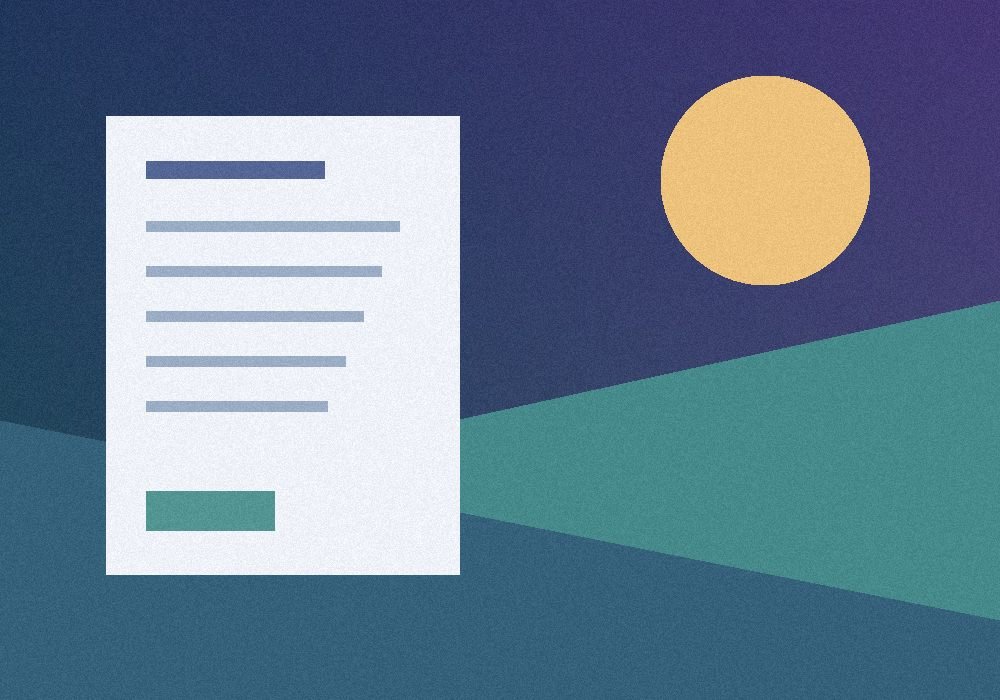
- Original PNG
- 780.9 KB
- JPG result
- 95.4 KB
- Dimensions preserved
- 1000 × 700 px
This is our own illustration. ArchiYa processed it as a JPG with a 100 KB limit, keeping its 1000 × 700 pixels. Other files will produce different sizes and quality.
The button prepares the file and settings. Review them and select “Process files” to repeat the test. Clear any selected files first.
Practical case: an image for an upload form
Before reducing file size, check three destination requirements: accepted format, maximum file size, and minimum or exact pixel dimensions.
- If JPG is accepted and the image does not need transparency, choose JPG. If PNG is required, keep PNG; renaming a JPG to .png does not convert it.
- Enter the limit in “Maximum size per image”. If the form requires an exact width or height, use Resize first, then select that result here.
- Disable “Also reduce dimensions if needed” if you need to preserve pixel dimensions. If the limit cannot be met, the tool reports it: decide whether another format or smaller dimensions are acceptable.
- Inspect the result at a readable size: small text, numbers and edges. Check pixel dimensions and file size before submitting it to the form.
Choosing a format and understanding the trade-offs
| Format | When to use it | What to check |
|---|---|---|
| JPG | Photos that do not need transparency. | Compression can soften text and fine details. Transparent areas use your selected background colour. |
| PNG | Screenshots, graphics or images needing transparency, if the destination accepts it. | The quality setting does not reduce PNG size. A small file size limit may require fewer pixels and a loss of detail. |
| WebP | Images for websites or services that accept this format. | Supports transparency and adjustable quality. Confirm that the form accepts WebP before processing. |
Same original, same limit: JPG versus PNG
We processed the same original 1000 × 700 illustration with a 100 KB limit. The ZIP contains the original and both generated results, with the listed file sizes, so you can compare them.
JPG · 95.4 KB
1000 × 700 px
Dimensions unchanged. Quality is adjusted to meet the limit.
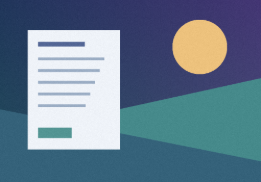
PNG · 65.2 KB
261 × 182 px
Smaller dimensions enabled. The format stays PNG, but the image has far fewer pixels.
Download original and results (ZIP)
To repeat the PNG case, select “Try an example”, choose PNG and enable “Also reduce dimensions if needed”; keep 100 KB and process. Compare readability in both results. Other files and browsers can produce different sizes and dimensions.
If the result is not what you expected
The maximum size cannot be met
If the destination allows it, enable smaller dimensions or try JPG or WebP. No setting can always preserve every pixel and detail at any file size limit.
The result is larger than the original
This can happen when changing formats, especially when converting a photo to PNG. Compare the result’s bytes: changing format and compressing are different operations.
Text is difficult to read
Use a larger file size limit if allowed, preserve more pixels or start from a clearer image. The tool cannot restore information already missing from the original.
Tool limits and file privacy
JPG, PNG and WebP are supported: up to 20 images per batch, 20 MB per image and 100 MB in total. Resolution and estimated memory use are also limited; an image may be rejected for its pixel count even if its file size is small. Processing takes place in your browser. New files are created without changing your originals.
Before you download
A 10 KB limit does not mean a large photo keeps all its detail. JPG and WebP allow quality adjustment; PNG normally needs fewer pixels to meet small limits. If smaller dimensions are disabled and the target cannot be met, the tool reports the problem.
Frequently asked questions
Can I create a PNG smaller than 10 KB?
Yes, when reducing dimensions allows it to meet that limit. Transparency is kept, but resolution may decrease significantly.
Does KB mean 1000 or 1024 bytes?
The tool uses 1024 bytes per KB. The result does not exceed the chosen limit using that unit.
Does the limit apply to the whole ZIP?
No. The maximum size applies to each processed image, not the batch ZIP.